
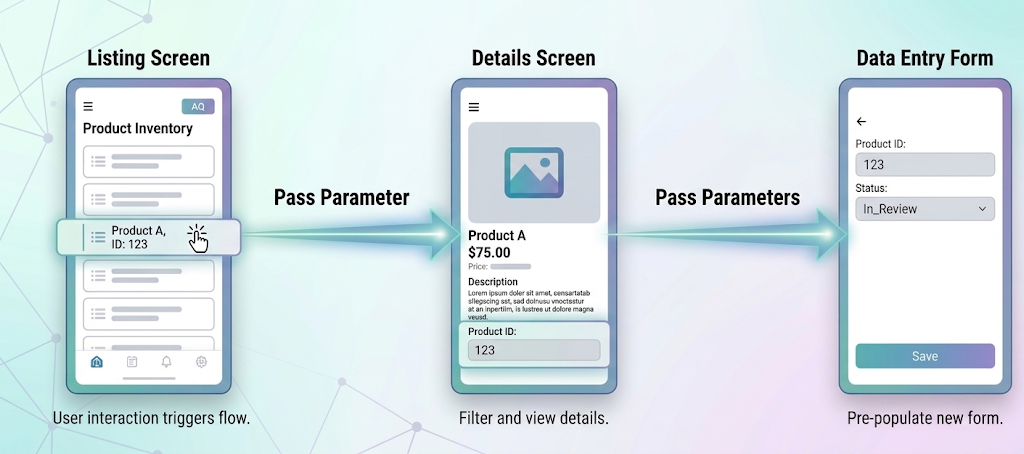
Building an app is about more than just filling out forms; it’s about creating a seamless flow of information. By Passing Parameters, you can link screens together to filter results, pre-populate fields, and reduce manual data entry for your users.
Why use parameters?
Passing parameters reduces “Cognitive Load.” By pre-filling fields and filtering out irrelevant data, you guide the user through a specific task, making your app feel intelligent and responsive rather than just a collection of static pages.
Core Concepts: This vs. Target
To pass data, you need to tell the platform where the information is coming from and where it is going with user interactions.
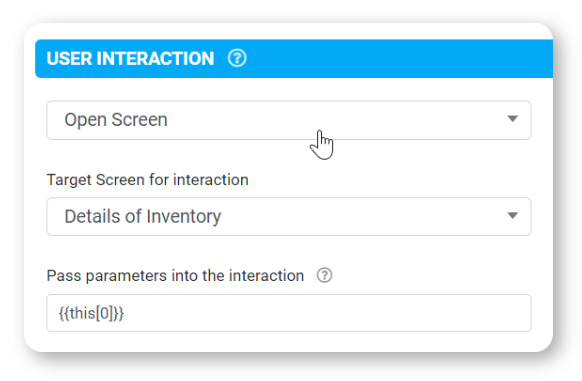
- {{this}}: Refers to the current screen’s data.
- {{target}}: Refers to the destination screen being opened.
Note: These are usually followed by a column index (e.g., [0] for the first column) or a Column Title.
Quick Syntax Reference
Target Screen Type | Goal | Syntax Example |
Details Screen | Open a specific record | {{this[0]}} |
Listing / Map | Filter rows based on a value | {{target[1]}} = {{this[1]}} |
Data Entry Form | Pre-fill form fields | field_id:{{this[0]}}|field_2:Text |
Common Use Cases
Listing Screen > Details Screen (The “Deep Dive”)+
Details Screen > Listing Screen (The “Category Filter”)+
Details Screen > Data Entry Form (The “Pre-filled Update”)+
Tips & Troubleshooting
The “Unique ID” Rule
If you pass a parameter to a Details Screen and it finds more than one matching row (duplicate IDs), the screen will fail to populate. Always ensure your first column contains unique identifiers (like a Serial Number or GUID).
Managing Saved Drafts
When you launch a Data Entry Form using parameters, the system treats this as a “New Entry” flow.
- To view saved entries: You must configure a separate Interaction to launch the App: Entry Drafts data source.
- Note: Passing parameters from a Listing screen to a Form will, by design, always create a new record, skipping the “Edit Existing” prompt.
Use the “Inventory App” Template
The best way to master these interactions is to see them in action. Install the Inventory App from the Examples Catalog to explore the pre-configured logic for:
- Custom Boards: Navigation hubs.
- Mapping Screens: Filtering pins by GPS coordinates.
- CRUD Operations: (Create, Read, Update, Delete) workflows.