
Form entries can be viewed, edited, printed, or exported after upload via the web portal’s Data Entries menu areas, Feed/Table/Map View.
View an Entry
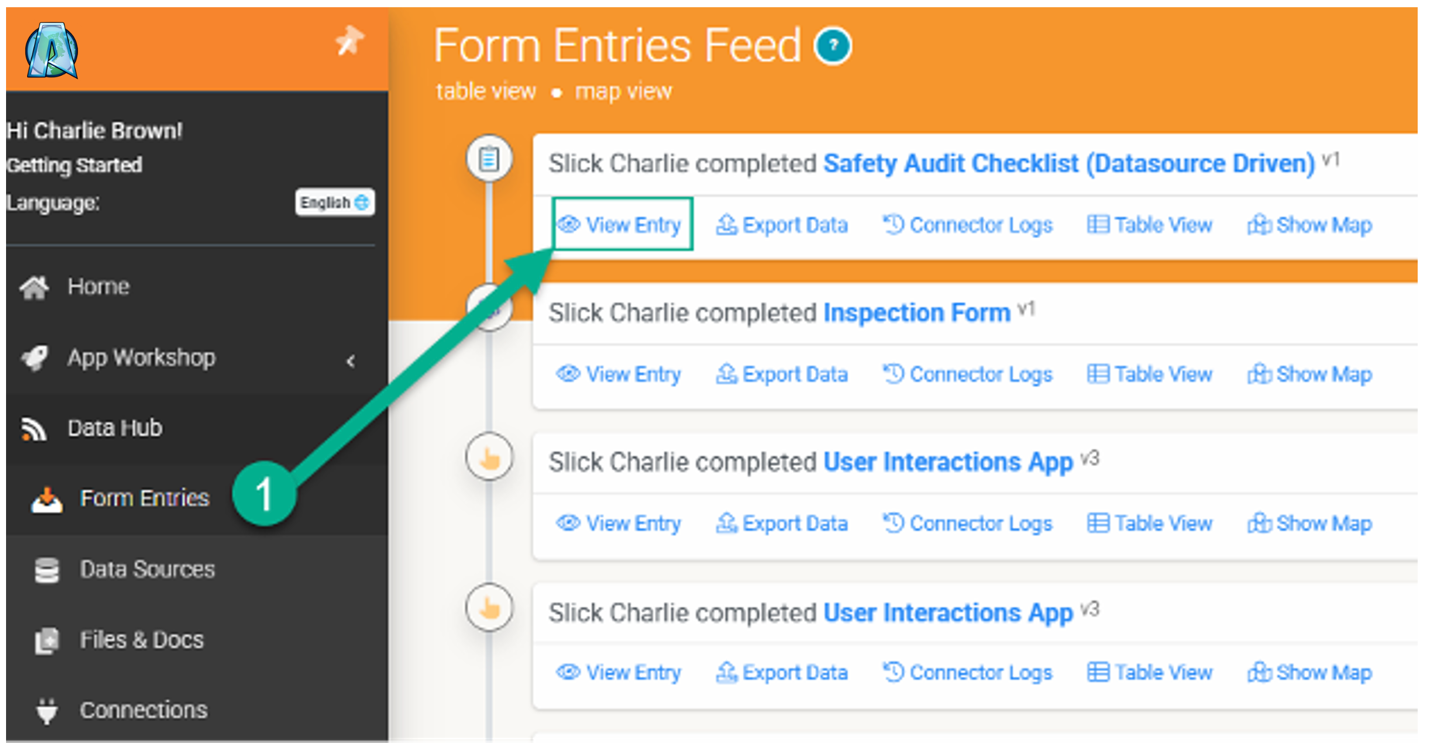
A View Entry link will be available regardless of where you’re viewing your data entries (Feed/Table/Map View). Hover over the entry to display the link.
Edit an Entry
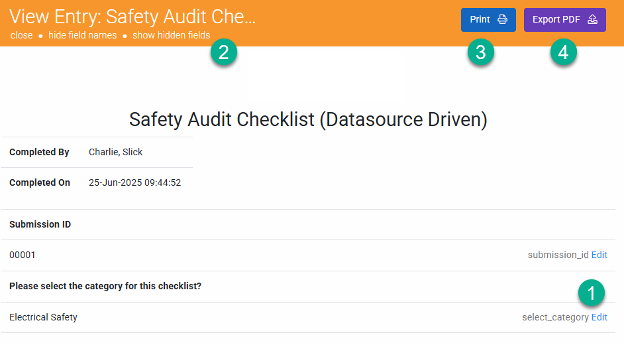
After clicking the View Entry link, you can edit the captured data, print it, and export it as needed.
Options | Description |
Edit | When editing fields, you can set them in the same way as in the app. Dropdowns are presented as drop-downs with the correct data choices, checkboxes, free-text, and other aspects of the form design, ensuring the edited form is valid. |
Hide or Show Fields | Options to hide field data names (adjacent to the Edit link) or show hidden fields within the form. |
Entries can be printed using the generic layout. | |
Export PDF | Export the entry as a PDF. If a Word or Excel template is attached to the form, it will be applied; otherwise, the generic layout will be used. |