
While most Sync actions happen in milliseconds, real-world business logic often requires a “waiting room.” Whether you’re staggering an email sequence or waiting for a specific project milestone, the Delay action allows you to pause a workflow and resume it precisely when needed.
Duration vs. Date: Choosing Your Pause
The Delay control offers two distinct methods for pausing your Sync. Choosing the right one depends on whether your timeline is relative or absolute.
Delay for Duration (Relative Time)
This tells the Sync to wait for a set amount of time starting from the moment the previous Action finished.
- Units: Seconds, Minutes, Hours, Days, Weeks, Months, or Years.
- Best for: Standardized gaps in a sequence.
- Example: “Wait 3 days after the welcome email is sent before checking in.”
Delay until Date (Absolute Time)
This tells the Sync to pause until a specific calendar moment is reached.
- Static Date: A fixed point in time (e.g., January 1st, 2027).
- Dynamic Date: Using a date field provided by a previous action (e.g., Wait until 2 days before the {{Due_Date}}).
- Best for: Hard deadlines or coordinated events.

Key Use Case: Multi-Day Follow-Up Sequences
The most powerful application of the Delay control is creating “Drip” workflows within a single Sync. Instead of building multiple disconnected automations, you can build one cohesive journey:
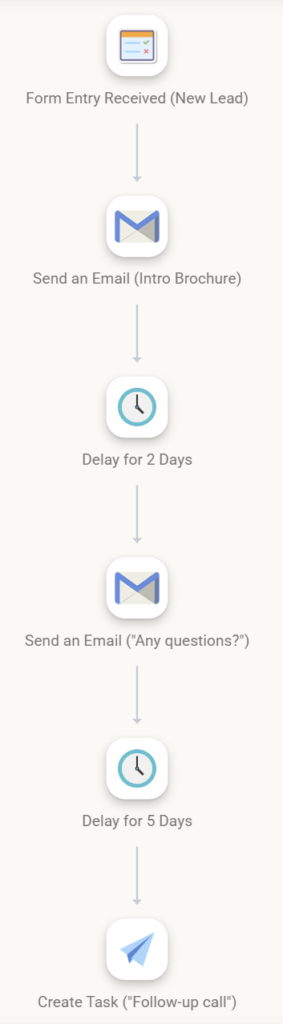
- Trigger: Form Entry Received (New Lead).
- Action: Send Email (Introductory Brochure).
- Control: Delay for 2 Days.
- Action: Send Email (“Do you have any questions?”).
- Control: Delay for 5 Days.
- Action: Create Task (“Call lead for manual follow-up”).
This “single-Sync” approach makes it much easier to track exactly where a specific lead is in their journey.

Mining Use Case: Post-Blast Safety & Re-entry Sequence
For the mining industry, Sync is a game-changer for Safety Compliance and Equipment Maintenance, where timing isn’t just about convenience—it’s about regulatory requirements and preventing costly downtime.
In mining operations, a “Blast Event” triggers a rigid sequence of safety checks. Using Delay controls ensures that no technician enters a zone until the mandatory “clearance time” has passed, and that follow-up reports are filed on schedule.
The Automated Workflow
- Trigger: Form Entry Received
- Action: A supervisor submits a “Blast Initialized” form via their mobile device.
- Action: Send Message (Email/SMS)
- Logic: Instantly notifies all site personnel that the blast zone is Closed.
- Control: Delay for Duration (4 Hours)
- Purpose: Mandatory wait time for dust settlement and gas dissipation.
- Action: Create Task
- Logic: Automatically assigns a “Gas Level Reading” task to the Safety Officer once the 4-hour window closes.
- Control: Delay until Date (Shift End)
- Logic: Pauses the Sync until 6:00 PM (using a dynamic field from the initial form).
- Action: Push Data (to SQL Server)
- Logic: Pushes the final combined blast data, re-entry timestamps, and safety clearance into the corporate Compliance Database.
Why this works for Mining
- Audit Trails: Because the Sync remains “Active” during the delays, the Sync History acts as a legal record proving that the 4-hour safety window was strictly observed before the next task was created.
- Reduced Radio Chatter: Automated SMS alerts triggered by the Sync keep everyone informed without manual dispatching.
- Dynamic Deadlines: Using Delay until Date allows the sequence to adjust if a blast is delayed or moved to a different shift, keeping the compliance data accurate.
Pro-Tip for Site Managers
You can add a Filter after the “Gas Level Reading” task. If the gas levels are still too high, the Sync can loop back to another Delay rather than proceeding to the “Zone Open” notification.
Visualizing the Paused State
When a Sync hits a Delay step, it doesn’t “stop” — it enters a Waiting state. You can monitor these “in-flight” Syncs through the Sync History dashboard:
- The Waiting Icon: Active Syncs paused by a Delay will display a Clock icon next to their execution ID.
- The Resume Forecast: Clicking into the execution details will show you the Scheduled Resume Time.
- Manual Override: If you need to push a Sync forward immediately (e.g., for testing), you can select the “Skip Delay” option in the history log to force the next action to fire.

Best Practices for Long-Running Syncs
When a Sync stays “active” for days or weeks, keep these technical considerations in mind:
- Snapshotted Data: By default, the Sync uses the data captured at the start of the workflow. If the customer’s info might change during a 10-day delay, add a Pull Data action immediately after the delay to refresh the record.
- Avoid “Logic Drift”: If you edit and save a new version of a Sync, executions currently “Waiting” in a delay will typically finish using the version of the logic they started with.
- Error Handling: If a service (like Google Sheets) is down when a Sync wakes up after a delay, the Sync will enter an “Error” state. Always check your history for “Woke up with errors” notifications.