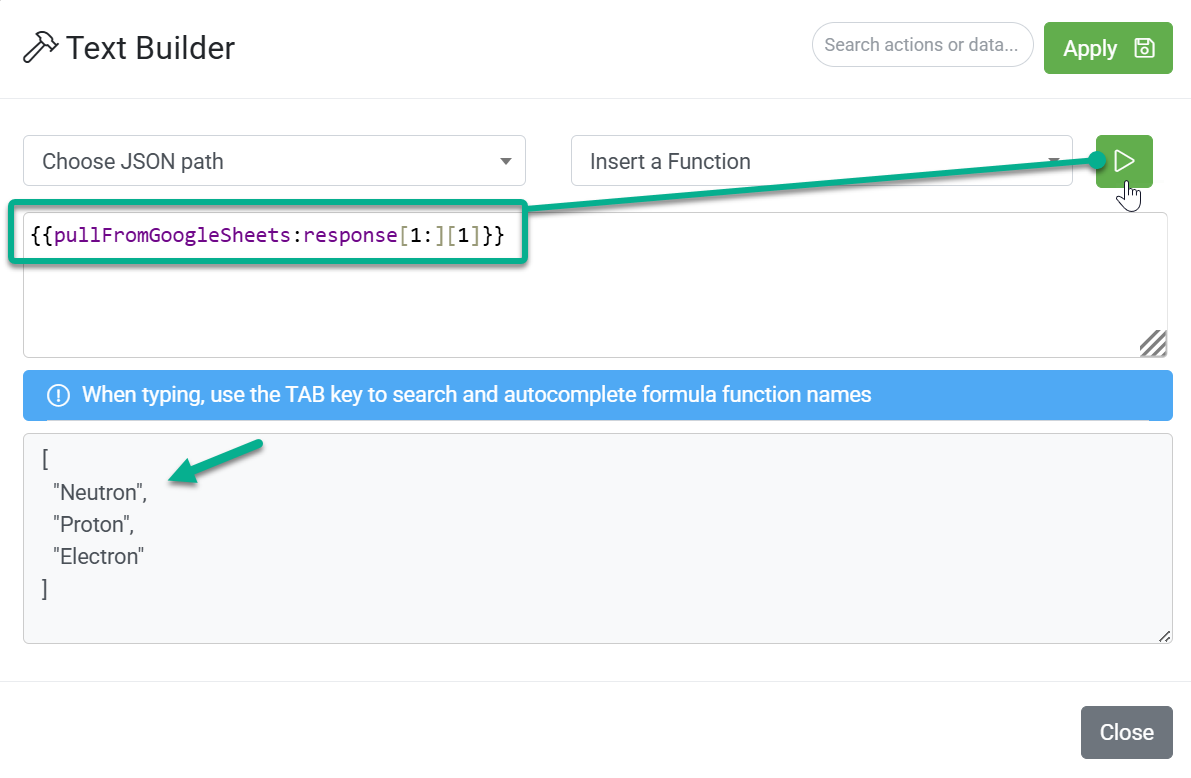
In a standard Sync, you can map simple fields, such as “First Name,” directly to a destination. However, when you are working with complex data—like a list of rows from a Google Sheet—you may need to pick out a specific piece of information from a larger set.
This is where JSON Path mapping comes in when you click the “Choose JSON path” dropdown in text or formula builders in the Sync Designer.
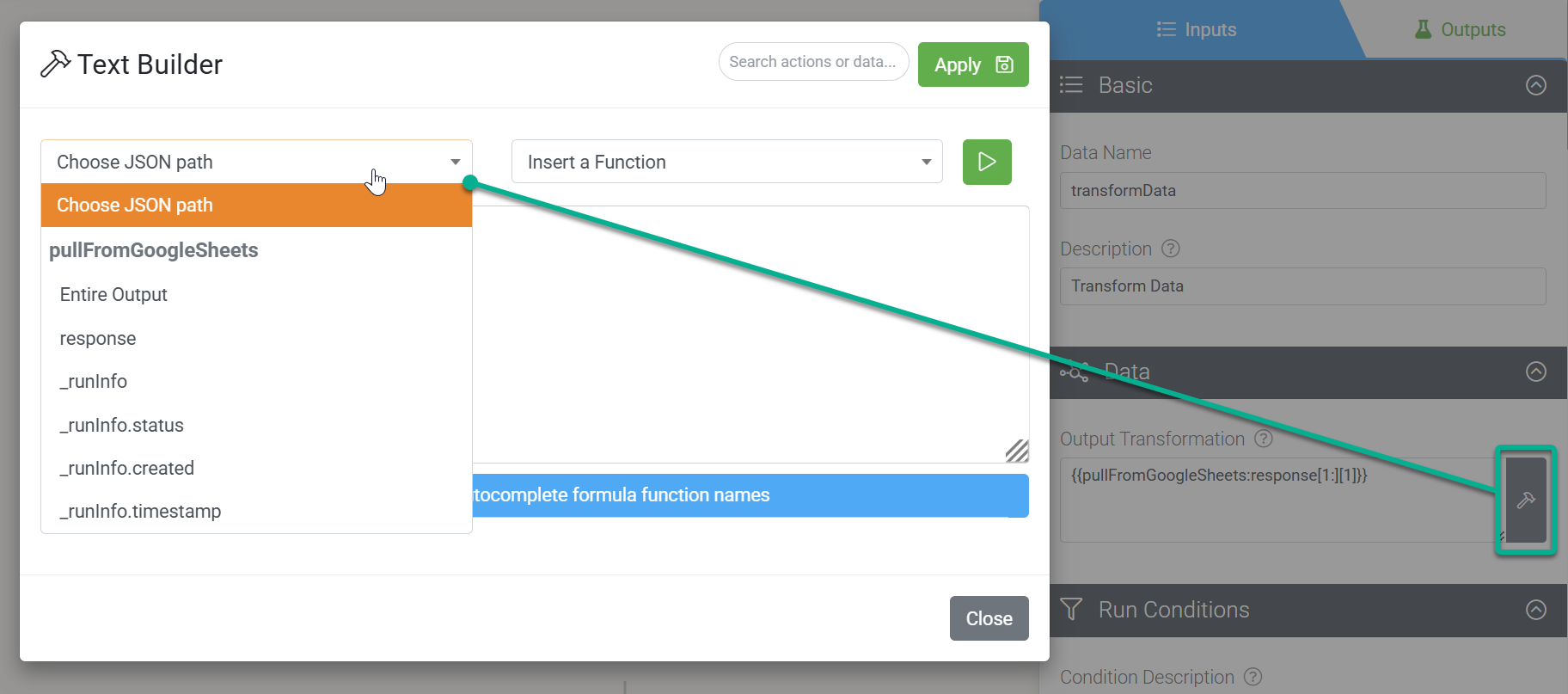
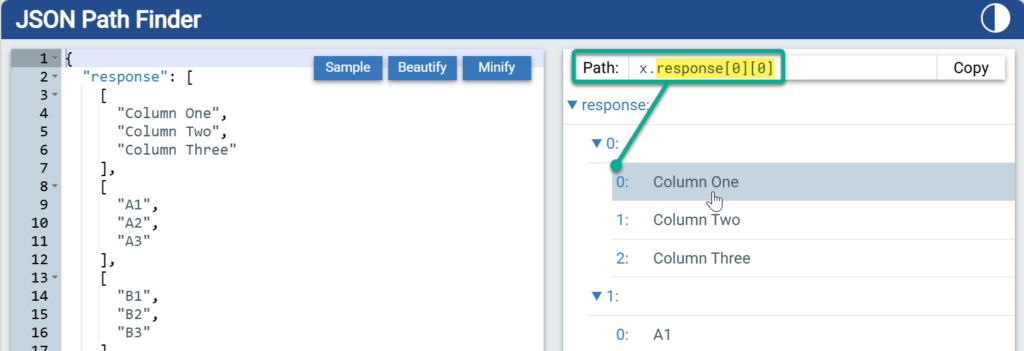
Since JSON Paths can feel a bit like “code”, this article is designed to be a go-to reference while building Syncs coupled with JSON Path Finder.
What is a JSON Path?
Think of a JSON Path as a GPS coordinate for your data. When an action like Pull from Google Sheets runs, it returns a structured “Response” containing all your rows and columns.
Because we don’t currently support automatic looping, you use a JSON Path to specify which row or cell you want to use in the next step.

The Anatomy of a Path
All paths follow this pattern:
{{ActionName:Path.To.Data}}
- . (Dot): Use this to go “inside” an object (e.g., .To).
- [] (Brackets): Use this to pick a specific item from a list/array.
- * (Wildcard): Use this to grab everything inside a list.
Example Breakdown
A typical JSON path in our Sync engine looks like this:
Sample JSON path
{{pullFromGoogleSheets:response[1:][1]}}
- {{pullFromGoogleSheets: This identifies the Source Action you are pulling from.
- :response: This tells the Sync to look inside the “Response” object of that action.
- [1:]: This is a Slice. It tells the Sync to look at the rows (starting from row 1).
- [1]}}: This identifies the specific Column index or property you want to extract.

Zero-Based Indexing
Remember that computers start counting at 0, not 1.
- Row 1 = [0]
- Row 2 = [1]
- Column A = [0]
- Column B = [1]

Common Path Patterns & Scenarios
Goal | Path Example | Result |
Pick a specific row | {{pullFromSheets:response[0]}} | Returns the very first row of the sheet. |
Pick a specific cell | {{pullFromSheets:response[0].Name}} | Returns the “Name” column from the first row. |
Get a range | {{pullFromSheets:response[0:5]}} | Returns the first 5 rows as a single data block. |
From Google Sheets or Excel Online
The “Response” usually comes back as a list of rows.
To get… | Use this Path | Result Example |
The first row | :response[0] | ["John", "Doe", "john@email.com"] |
The second row | :response[1] | ["Jane", "Smith", "jane@email.com"] |
A specific cell | :response[0][1] | "Doe" (Row 0, Column 1) |
From a Webhook Received
Webhooks are often deeply nested. You have to “dig” through the layers.
To get… | Use this Path | Explanation |
A top-level field | :customer_id | Finds customer_id in the main data. |
A nested field | :data.user.email | Goes into data, then user, then finds email. |
The first item in a list | :items[0].name | Finds the name of the first item in an “items” list. |

Power User “Slicing”
If you want more than one row but not the whole sheet, you can “slice” the data.
- [0:5] — Gets the first 5 items (Index 0 through 4).
- [5:] — Gets everything after the first 5 items.
- [-1] — Gets the very last item in the list (perfect for “Latest Entry” logic).

How to Find Your Path
The Sync Designer helps you find these paths unless you prefer to use something like JSON Path Finder.
- Run a Test: Click Test Actions in the top-right of the designer, or the Outputs property tab of an action.
- Inspect Output: Open the results for your “Pull” action after running a full Sync test run, or view the Output Data after running a selected action.
- Choose JSON Path: In your next action (like a Transform or Email step), use the dropdown menu to see available paths.
- Select “Entire Output” or Specifics: The dropdown will show you common paths like _runInfo.status or response.
Full Test Run
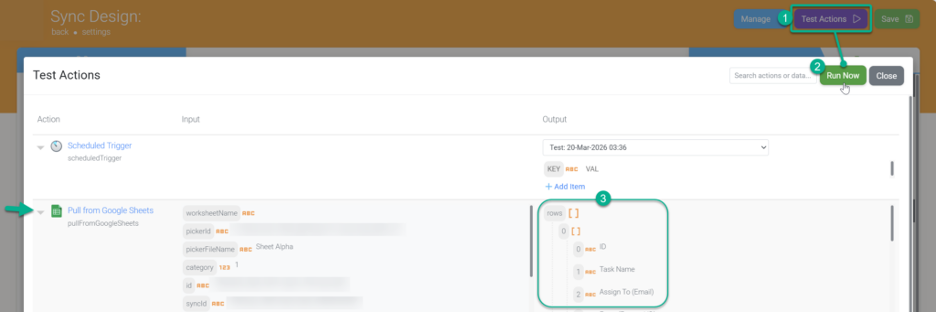
Action Test Run
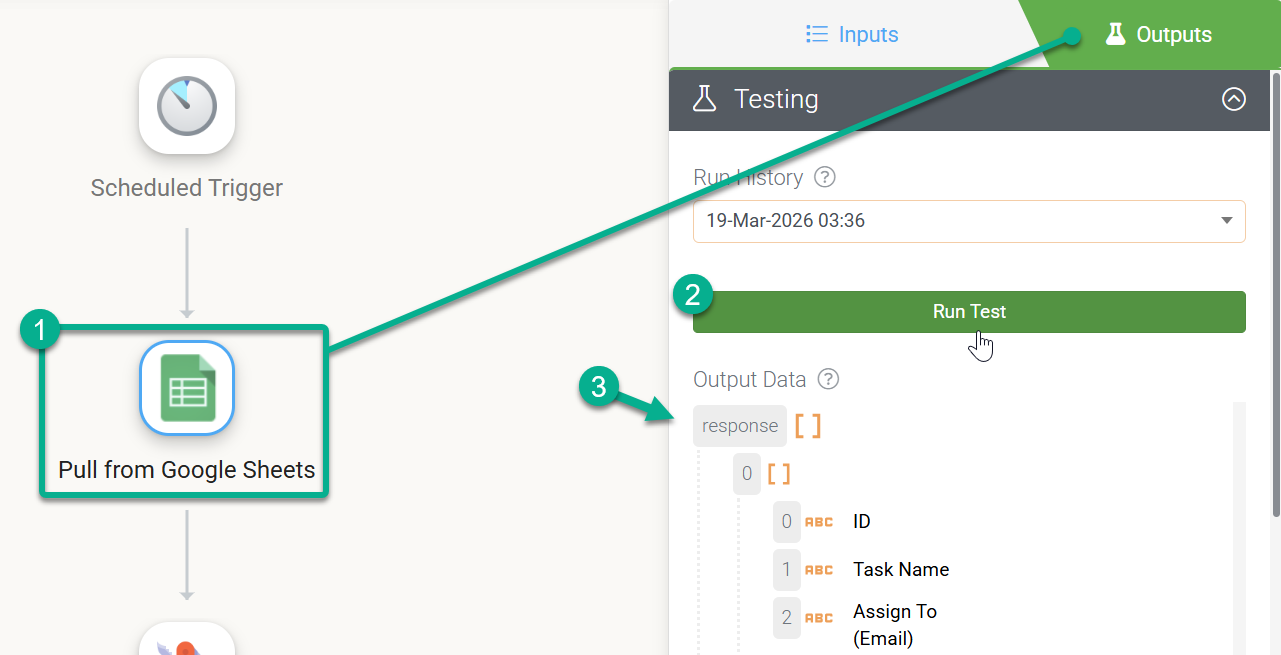
JSON Path Finder

How to “Test” Your Path
You don’t have to guess! Use the Sync Designer to verify your work:
- Click Test Actions and run your Sync Action.