
Our Tasks & Dispatch functionality allows you to assign tasks - Forms, Docs and free text Instructions - to be sent to users’ devices in the field.
You specify a date and time to complete the Task by. Additionally you can optionally specify a location. You can even require that the app user to complete the Task at the location. This allows you to upgrade processes that used to rely on paper, phone calls and email. Instead, use an app to seamlessly inform and track activities going on in the field.
A Task is composed of one or more Activities which define the individual steps involved in the Task. This way you can create complex Tasks that have a number of steps or required actions.
Each Task Activity must be one of 3 types:
- Fill out Form - like the name says, the assigned user must fill out a specified Form
- View Doc - the assigned user must view the specified Doc
- Instruction - a free text instruction that must be checked off by the assigned user.
Tasks can be to Fill Out a Form, a set of Instructions, Read a Document, or a combination of the three.
Dispatching isn’t limited to a single user but can also be sent out to all users or a group of users, with options for All to Complete, First Available Person, First User to Claim, or Unassigned Task User.
How you create tasks is entirely up to you. Whether it’s a once-off or recurring task, it can be swiftly set up and dispatched, especially when using a task template.
Typically, task creation and dispatch are achieved using the web portal, but our Process Step field and Tasking API can accomplish similar outcomes via in-app solutions or external system communications.
Web Portal
When logged into the web portal and navigating to the Tasks & Dispatch menu area, the following areas will be available.
- Current Tasks
- Task Calendar
- Task Map
- Recurring Tasks
- Task Templates
Each area provides options to view, create, and dispatch tasks, respectively. We suggest logging into your account, familiarizing yourself with these areas by sending out a few tasks, and getting a feel for receiving tasks on your device.
In-App
When a user receives a task, a push notification is sent to the device, which can launch the app displaying the task.
In-app Task Notifications are displayed at the bottom of the app’s start screen. This Info Alert Box can also be fully customized on the App Setup Page under Basic Settings.
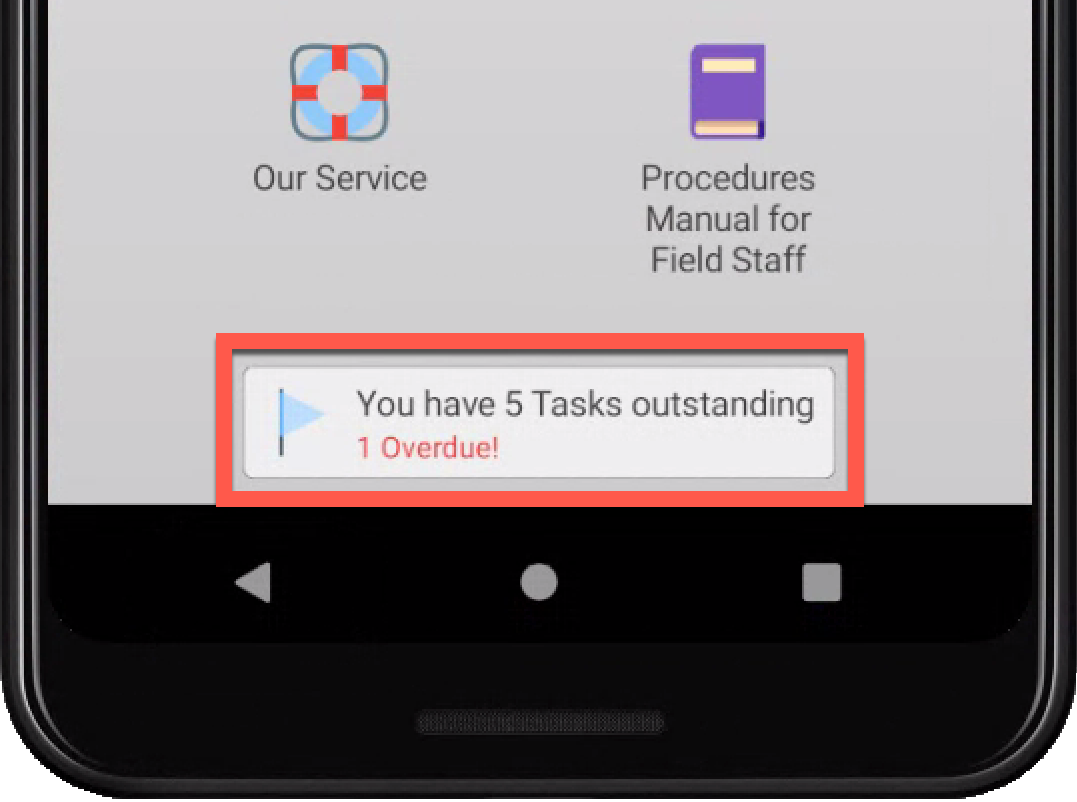
Upon selecting, the user’s Task List will display, allowing task selection and completion.
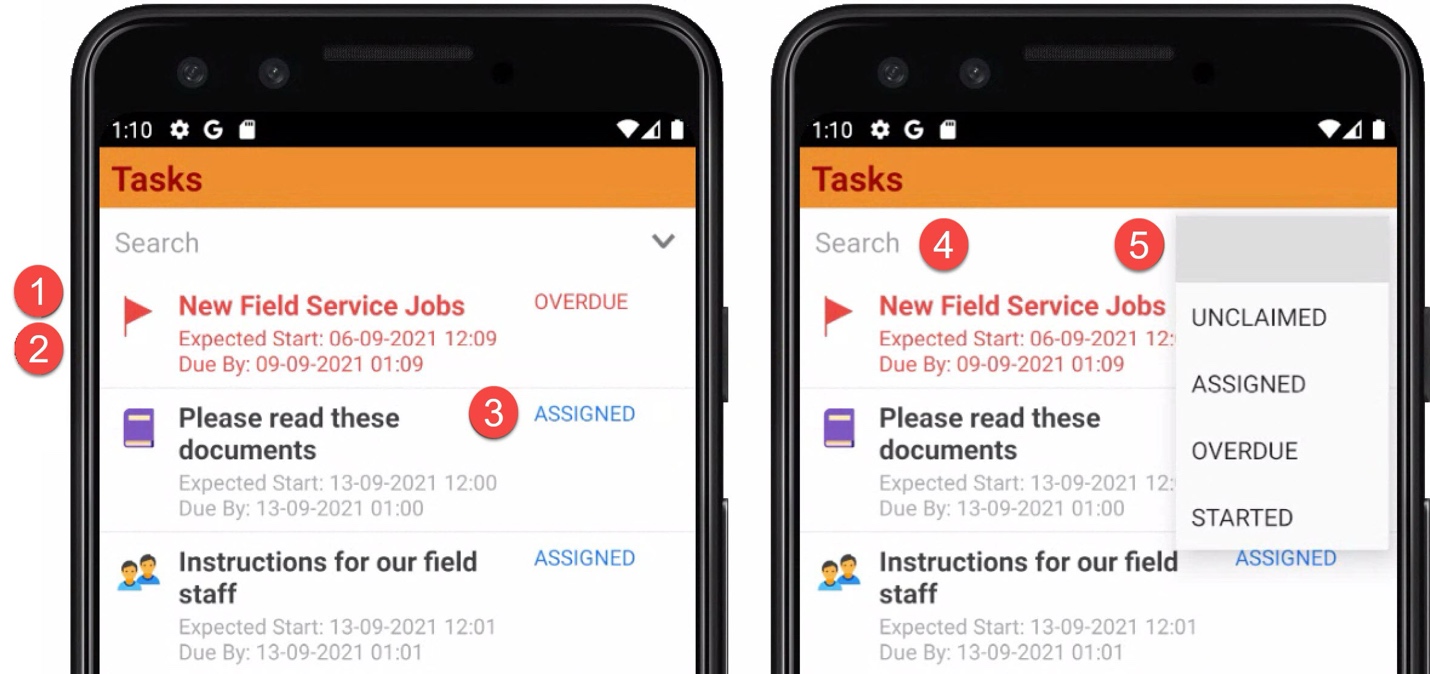
- Task name
- Expected start and due dates
- Task status
- Task search text box
- Task status filter
Every Task must be assigned to an app user.
You can delete Tasks at any time which will remove the Task from the app user’s Task list on their device.
Furthermore, you can create Task Templates out of commonly created tasks. This allows for rapid dispatch of Tasks to users in the field.
Claimed Task Handling
Once a task is claimed, if sent to numerous users and not all to complete, the task status changes to assigned and is removed from all other users’ task list.